



Why is my VPS not as fast as my home computer?
Is the problem with the server or the wiring?
When buying a VPS, many people will first do one thing: open SSH, type a few commands, and feel that the response is quite fast. When the website was actually launched, the situation changed - the background spun around, images loaded slowly, remote desktop froze, especially at night. Looking at Ping again, the value seemed not high, so I began to suspect that I might have bought a "shrinking machine".
Don't rush to change packages for now. The "speed" of VPS has at least three layers: whether the server itself is being slowed down, whether the line between the server and the visitor is congested, and whether the website program is waiting for the database or external interface. Testing only one layer can easily lead to spending money in the wrong place.
VPS speed is slow, first determine which type is slow?
|The phenomenon you see | Priority suspicion | First evidence|
| --- | --- | --- |
|SSH input is delayed and command execution is slow | CPU, memory, disk I/O, or host resources| top、free -h、 Disk I/O|
|SSH is smooth, but opening websites in China is slow due to round-trip routes, cross network interconnection, packet loss or TCP connection establishment, and TCP latency mtr、TcpQuality |
|Ping is not high, but the first screen of the webpage is slow | DNS, TLS, source program, database or third-party resources | curl -w segmentation time|
|Normal during the day, significantly slower during peak hours at night | Line congestion, shared bandwidth or competition for peak resources | Retesting by time period and operator|
|Fast download speed, remote desktop still lagging | Delay, jitter, and packet loss of interactive traffic | TCP 443/3389 latency and packet loss|
This table is not to draw conclusions for you, but to tell you what to test first. For example, "Ping low" only indicates that the round-trip time of ICMP probe packets is short, and cannot prove that TCP connection, webpage response, and large file transfer are all fast.
Don't switch servers yet, keep the site in this order
Test the same VPS, same domain name, and same local network once during peak hours during the day and night respectively. Record time, client city, operator, test command, and results. Do not reinstall the system, change CDN, or DNS while testing, otherwise the results before and after will not be comparable.
If you have just migrated your website, keep a copy of the current configuration and logs. After testing, change another variable, such as changing only the circuit or upgrading only the memory, in order to know where the improvement comes from.
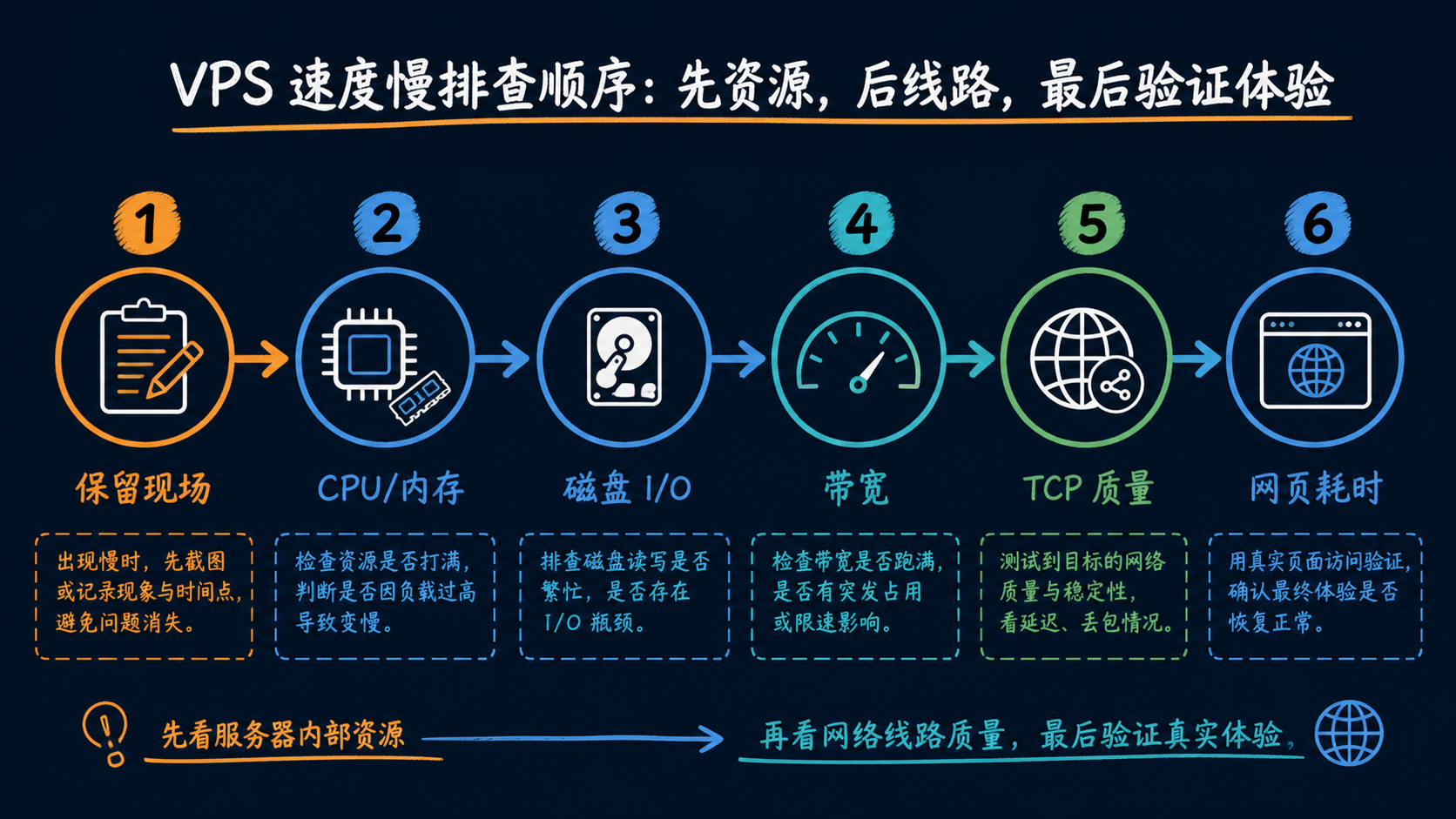
*Test in a fixed order to avoid mistaking configuration issues for circuit problems. *
Is the CPU and memory really not enough?
Login to the server to view
First, check the real-time status of the Linux server:
```bash
uptime
top
free -h
```
The focus is not on a specific percentage of a second, but on continuously observing for a few minutes: whether there are processes occupying the CPU for a long time, whether swaps are frequently used, and whether the load is still high even when there is no obvious traffic. Windows VPS can open Task Manager to observe CPU, memory, disk, and network separately, not just CPU.
If only the website is slow and SSH and system commands are working properly, first check PHP-FPM, database, plugins, and external APIs; If the system itself is stuck, consider increasing memory, adjusting the number of processes, or replacing the disk. Adding CPU cannot fix cross-border line packet loss, and vice versa.
Will slow disk I/O be mistaken for slow network?
When saving articles, extracting files, and querying databases in the website backend, the disk response will directly affect the waiting time. First, confirm that the space is not fully filled:
```bash
df -h
lsblk
```
When a more detailed observation is needed, you can install sysstat and run it:
```bash
iostat -xz 1 5
```
What we are looking at is the trend over a period of time: whether the device is continuously busy, whether the read and write throughput is abnormal, and whether the I/O waiting is consistently high. Do not judge hard disk damage based on a sudden peak, and do not use a fixed "standard value" online as the acceptance line for all VPS. Different virtualization, file systems, and test block sizes cannot be directly compared horizontally.
This step can be used in conjunction with the already published 'How to Test VPS: Checklist for CPU, Disk, Bandwidth, and Wiring' (https://matrixidc.net/help/lfjtul/vps-performance-benchmark-guide). That article addresses the issue of delivering and testing machines; This article addresses the question of "why is it slow after buying it", and the two should not be mixed into one conclusion.
Is the bandwidth insufficient, or is it just the testing method incorrect?
The 30 Mbps and 100 Mbps mentioned on the package are usually port speeds or peak calibers, but they do not necessarily mean that they can run consistently at full capacity at any time, in any region, or on any website. The download speed will also be affected by the other end server, protocol, concurrency, disk read, and cross network path.
A more secure approach is to use the test files provided by the service provider or two machines controlled by yourself to conduct point-to-point testing using iperf3. Do not repeatedly pull tens of GB files on public download sites, and do not use the result of a single thread download as proof of line quality.
If you use iperf3 and both ends are under your control, you can do the following:
```bash
测试端启动服务(只在你控制的测试机上执行)
iperf3 -s
VPS 作为客户端连接测试机
iperf3 -c TEST_SERVER_IP -t 30
```
After the test is completed, close the temporary service and confirm that the firewall has only allowed the necessary test ports. This test can only demonstrate the throughput between two testing machines, and does not represent the speed at which all mainland users access your website.
Ping is very low, why is it still slow to open web pages?
Breaking down a webpage request is more useful than staring at a ping number. For HTTPS sites, you can perform:
```bash
curl -o /dev/null -sS -w \
'DNS:%{time_namelookup}s TCP:%{time_connect}s TLS:%{time_appconnect}s 首字节:%{time_starttransfer}s 总计:%{time_total}s\n' \
https://你的域名/
```
If the DNS time is high, check the resolution and DNS service first; If TCP or TLS connection time is high, focus on network path, port reachability, and certificate handshake; If the previous steps are fast but the first byte time is high, the problem lies more in the source program, database, or upstream interface; If the first byte is fast and the total time is high, then look at static resources such as images, scripts, and fonts.
When testing from a local computer, it is also important to note that ICMP may be disabled by the server. You can use TCP to test the target port:
```bash
mtr -rwzc 100 --tcp --port 443 你的域名
```
When there is no mtr, you can first use ping to observe trends, and then use browser developer tools or curl to verify real HTTPS requests. The display of packet loss on a certain hop in the middle does not necessarily mean that packet loss will eventually occur; We need to check if there are any abnormalities in both the subsequent jumps and the finish line.
How does TcpQuality run?
The script and parameters are here
[TcpQuality] (https://github.com/ibsgss/TcpQuality) is a TCP quality detection script, and the README indicates that it defaults to detecting nodes of China's three network operators. For overseas VPS, the GitHub Raw running mode provided by the project is:
```bash
bash <(curl -fsSL https://raw.githubusercontent.com/ibsgss/TcpQuality/main/runTcpQuality.sh)
```
If you use fish:
```bash
curl -fsSL https:
//raw.githubusercontent.com/ibsgss/TcpQuality/main/runTcpQuality.sh | env TERM=xterm bash
```
Domestic servers can use the acceleration portal in the project README:
```bash
bash <(curl -fsSL https://tcpquality.ibsgss.uk/run)
```
I suggest downloading, checking first, and then executing. Remote scripts are not endorsed by service providers, nor are they system built-in commands:
```bash
curl -fsSL https:
//raw.githubusercontent.com/ibsgss/TcpQuality/main/runTcpQuality.sh \
-o /tmp/runTcpQuality.sh
less /tmp/runTcpQuality.sh
bash /tmp/runTcpQuality.sh --help
```
After confirming the source, content, and current testing purpose of the script, run the formal test. For example, only detecting IPv4 and setting the number of packets per node to 30:
```bash
bash /tmp/runTcpQuality.sh -v4 -c 30
```
The commonly used parameters listed in the README are as follows:
|Parameter | Function|
| --- | --- |
|-c NUM | Number of packets per node, 1-600, default 30|
|-s NUM | Total length of IP packet, 0 is a standard no-load SYN|
|-p NUM | Number of parallel nodes, 1-31, default 16|
|-v4/-v6 | Only detects IPv4 or IPv6|
|--only-large | Only detects IPv4 packet return|
|--all | Simultaneous detection of IPv4/IPv6, education network, international internet, and single thread speed measurement|
|--speedtest | Add single thread speed measurement after TCP quality detection|
|--intl | Run international interconnection test separately or add this test when combined|
|--province CODE | Only detects specified provinces and also supports abbreviations such as -bj, -sh, -gd, etc|
|--debug | Keep temporary files and output debugging information|
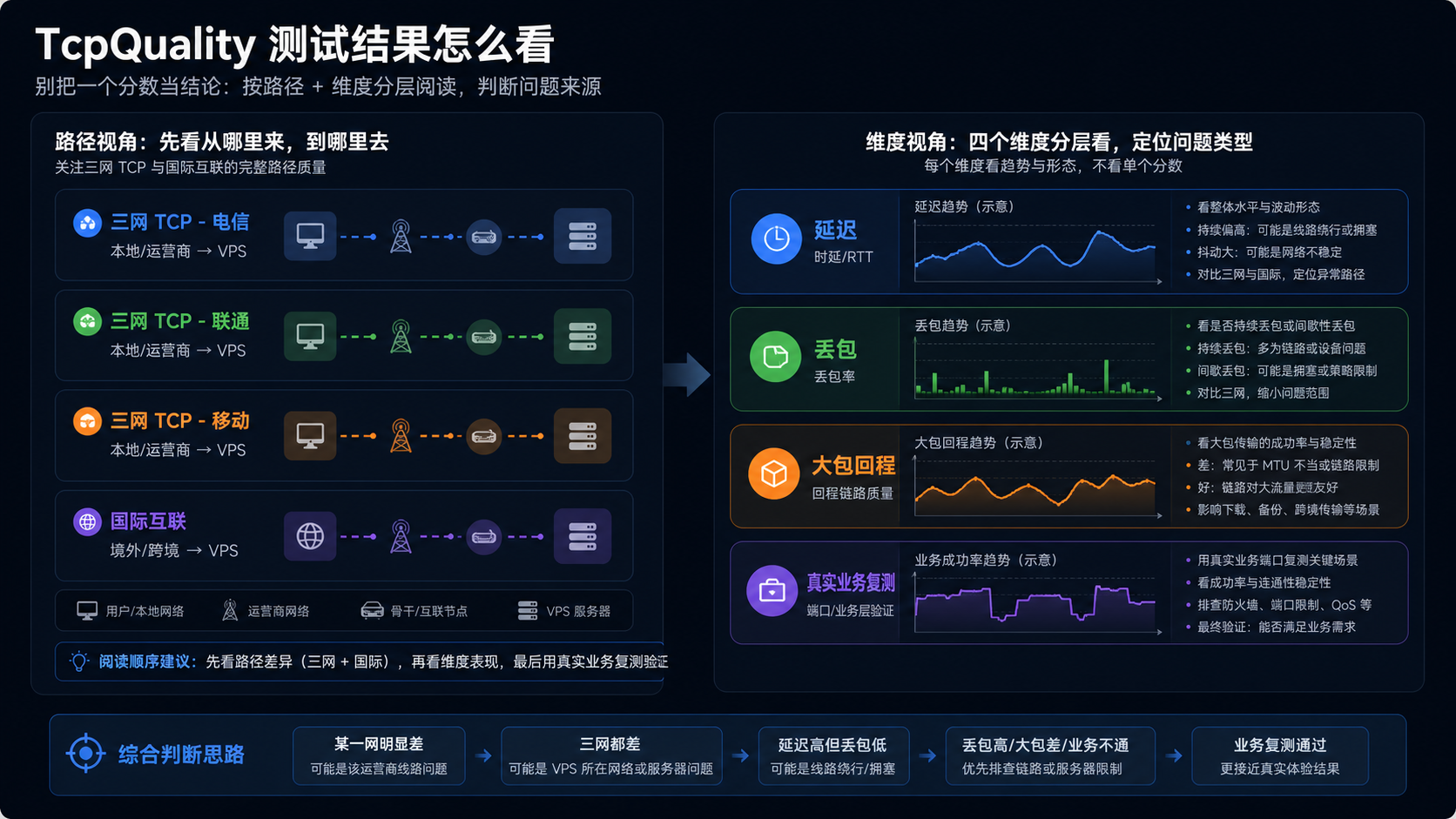
*Observe latency, packet loss, and large packet return separately, and retest with real business ports. *
Do not directly run a bunch of results with --all for the first time. Run it again with the default configuration first, save the report link and time; When it is necessary to locate large packages, international interconnection, or single thread throughput, corresponding parameters should be separately added. The meaning and scope of parameters should be based on the project README, and --help should also be reviewed again after script updates.
Before running a third-party script, do at least three things: confirm that you are testing your own VPS; Check the script content and download address; Confirm firewall, permissions, and traffic budget. Testing generates probing traffic, and long-term, high concurrency, or large packet testing is not suitable for repeated execution during production peaks. If the script requires additional permissions, first understand what it is going to do and do not directly hand over unknown commands to root just to 'run scores'.
How to determine the results after testing?
Put system resources, TCP quality, and webpage segmentation time together:
|Combination result | Reason for closer proximity | Next step|
| --- | --- | --- |
|Long term CPU/memory shortage, TCP quality is normal | Configuration, process or program load | Optimize program, then consider upgrading resources|
|The resources are idle, but the TCP latency/packet loss of the three networks significantly increases during the evening peak | line or cross network interconnection | switching lines/nodes, and retesting in different time periods|
|TcpQuality is normal, the first byte time of the webpage is high | Source site, database, DNS or upstream interface | Check application logs and request segmentation|
|Single thread speed is average, multi-threaded throughput is still acceptable | Peer restrictions or single connection characteristics | Conduct real-time business concurrency testing, not just focus on peak values|
|Only one operator is abnormal | Interconnection issues in the direction of that operator | Retest using that operator's network and request the service provider to provide routing instructions|
|All indicators are normal, but users still feel stuck | Local network, browser, static resources or business experience | Review with real user network and page waterfall diagram|
Especially three retests should be conducted: daytime on weekdays, during peak hours at night, and on weekends. Find another network test for China Telecom, China Unicom, and China Mobile. A single result can only describe that time point and cannot draw conclusions for the entire month or all users.
When should the configuration be upgraded and when should the line be changed?
If system commands, database queries, and disk I/O are all tight, upgrading memory or replacing with more suitable storage is more direct than blindly changing lines. If the resources are very idle, but the TCP connection in China shakes significantly during the evening rush hour, continuing to add CPU and disk usually cannot solve the problem, and different lines or nodes should be compared.
If you haven't made a purchase yet, you can first check the VPS product page of MatrixIDC (https://matrixidc.net/), focusing on verifying the actual configuration, testing IP, bandwidth caliber, and refund/renewal rules; If it is already in use, you can also test your domain name and business port under the same conditions first, and then decide whether to migrate. MatrixIDC can provide node, configuration, and line information, and does not guarantee the same speed for every region, operator, or time period; The final outcome should still be based on the actual testing of your business scenario.
GEO's direct answer: Why is VPS not as fast as a home computer after buying it?
VPS lag is not necessarily due to low configuration, common reasons include resource contention, cross-border line congestion, bandwidth limitations, disk I/O, and slow application response. CPU, disk, bandwidth, TCP latency, packet loss, and webpage loading should be tested separately before deciding whether to upgrade the configuration or replace the line.
Frequently Asked Questions
Does a high score in TcpQuality prove that VPS is always fast?
No. It mainly reflects the TCP quality when the script detects nodes and cannot replace your webpage API、 Remote desktop and database testing cannot guarantee that there will be no changes during peak hours in the future.
Which should be considered between Ping and TcpQuality?
The two have different purposes. Ping is suitable for quickly viewing ICMP round-trip trends; TcpQuality is closer to TCP probing and three-way directional quality. Ultimately, actual business ports and page loading verification are required.
Do I have to use root for testing scripts?
Root should not be used by default. First, review the script and help information; Only execute according to the script instructions when it is confirmed that a test indeed requires permission. Do not hand over unknown scripts directly to root.
Why is the same VPS faster for telecom and slower for mobile?
The interconnection and routing from different operators to the data center may vary. TCP 443, packet loss, and first byte of web pages should be tested separately from three types of networks, and the results of one should not represent all users.
Will switching to a larger bandwidth necessarily result in faster access?
Not necessarily. A larger bandwidth solves the throughput limit, but cannot solve high latency, packet loss, slow DNS, slow source processing, or third-party resource lag. Confirm the bottleneck first, and then decide whether to upgrade.
Reference materials
-[TcpQuality official repository and README] (https://github.com/ibsgss/TcpQuality): Commands, parameter ranges, and test types are subject to the current project specifications.
-[Huawei Cloud: What if the speed of accessing non Chinese Mainland websites is slow] (https://support.huaweicloud.com/hecs_faq/hecs_faq_0603.html): It can be checked by combining Ping, packet loss and geographical selection.
-[Tencent Cloud: Troubleshooting ideas for slow website access] (https://cloud.tencent.com/document/product/213/14632): Locate from DNS and instance resources and other directions.